
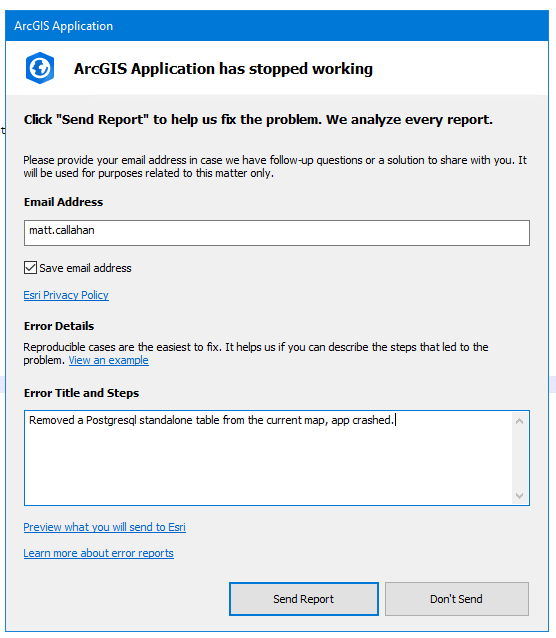
In the event of an ArcGIS Pro application crash, the following procedure can be used to assist in diagnosing and resolving the problem. On app crash, send the report. In my experience Esri does review these, even if a support ticket is not opened in relation to your crash.
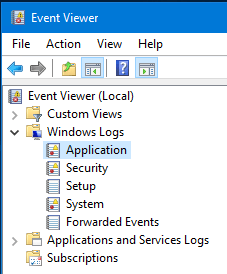
After sending the crash report, and before opening ArcGIS Pro again, open Windows Event Viewer > Left panel > Windows Logs > Application
The most recent event is at the top of the list. Optionally, filter the event list on the right panel to reduce some of the noise: Filter Current Log… > Event level: Critical + Error + Warning

Find any events that look related to ArcGIS Pro. In this example a particular tool needed a .NET Framework version update, which resolved the issue and allowed the tool to run again

If nothing is revealed in the Windows Event Viewer, inspect the ArcGIS Pro logs. Error report files have the extension .dmp and are saved to the application data location on your computer, typically:%userprofile%\AppData\Local\ESRI\ErrorReports\
The ErrorReports folder is created automatically upon application crash, it may not be present after installation of a new version of ArcGIS or if a crash has not yet occured. To view and inspect these .dmp files, install Windows Debugger Preview (WinDBG). Once installed, Run WinDBG > File tab > Open Dump File > browse to the dump file and click Open
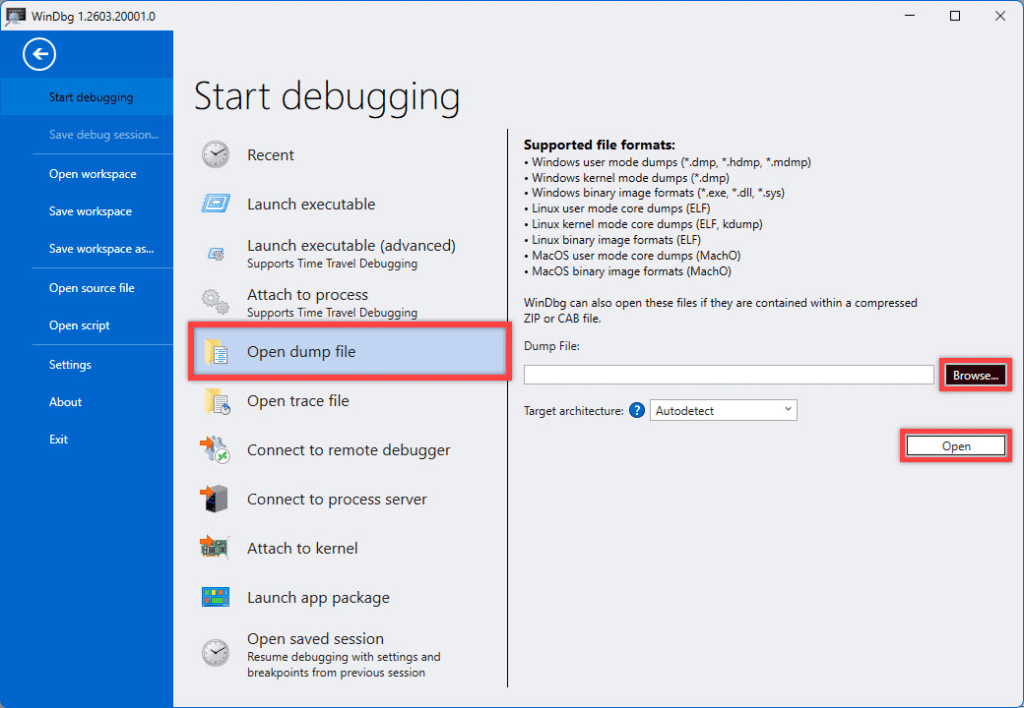
Image credit: EsriWhen the file is loaded, text is automatically populated; click !analyze -v The first time you do this, set a symbol path so WinDbg can resolve function names:
File > Symbol File Path > SRVC:\Symbolshttps://msdl.microsoft.com/download/symbols
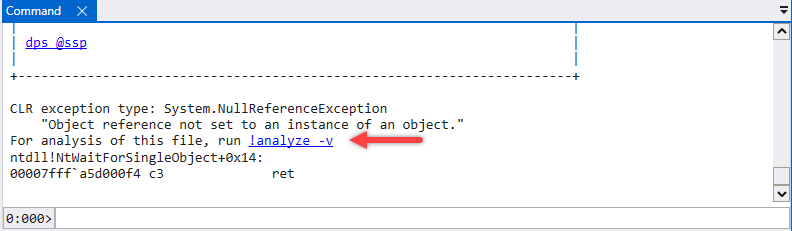
Image credit: EsriWhen completed, the MODULE_NAME is highlighted in blue and IMAGE_NAME, which corresponds to the library (.dll file), causing or related to the crash. Click MODULE_NAME to display the image_path (location in File Explorer).
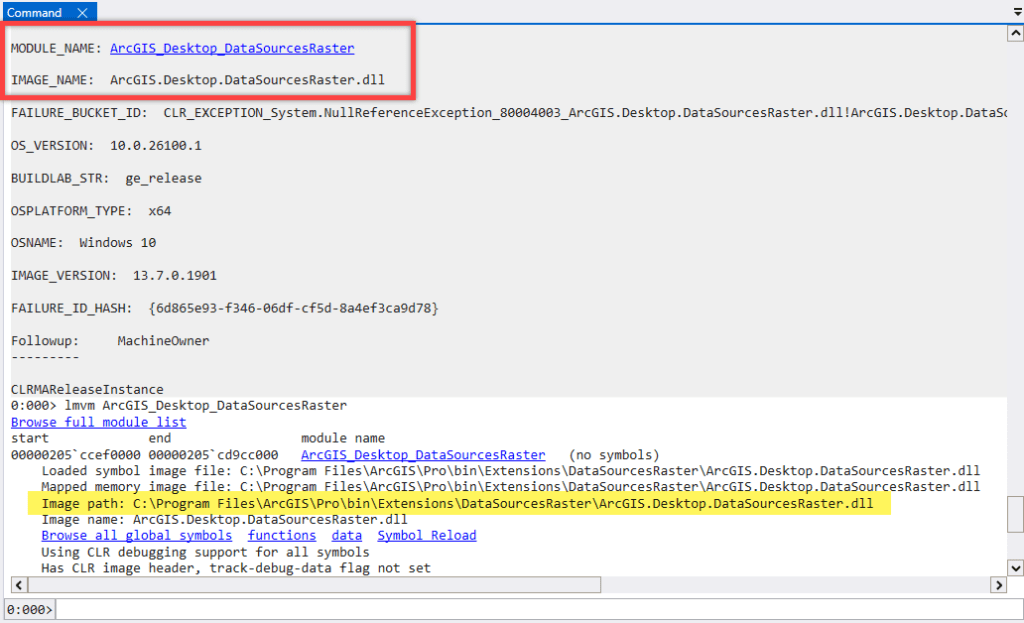
Image credit: EsriFor an ArcGIS Pro crash specifically, look in the !analyze -v output for the faulting module name. if it’s an Esri DLL (something like Esri.ArcGIS.*.dll) versus a third-party or graphics driver DLL, that tells you whether it’s likely an ArcGIS Pro bug, a plugin/extension issue, or a driver problem. If the log content is dense paste the !analyze -v output into Claude or other AI service and ask for an interpretation.
Additional links:
https://support.vertigis.com/hc/en-us/articles/21961472554386-Opening-an-ArcGIS-Server-Crash-Dump-File
https://support.esri.com/en-us/knowledge-base/workflow-when-arcmap-or-arcgis-pro-crash-000026378
https://learn.microsoft.com/en-us/windows-hardware/drivers/debugger/
 Matt Callahan's Blog 📝